Introduction
Are you still using a 4G network even though your smartphone supports 5G? Do you want to switch your mobile network from 4G to 5G with just one click?
Nowadays, 5G technology is becoming increasingly popular in India. Mobile users want faster internet speeds, smoother video streaming, better online gaming experiences and quicker downloads. However, some users find it difficult to locate the 5G network option in their smartphone settings.
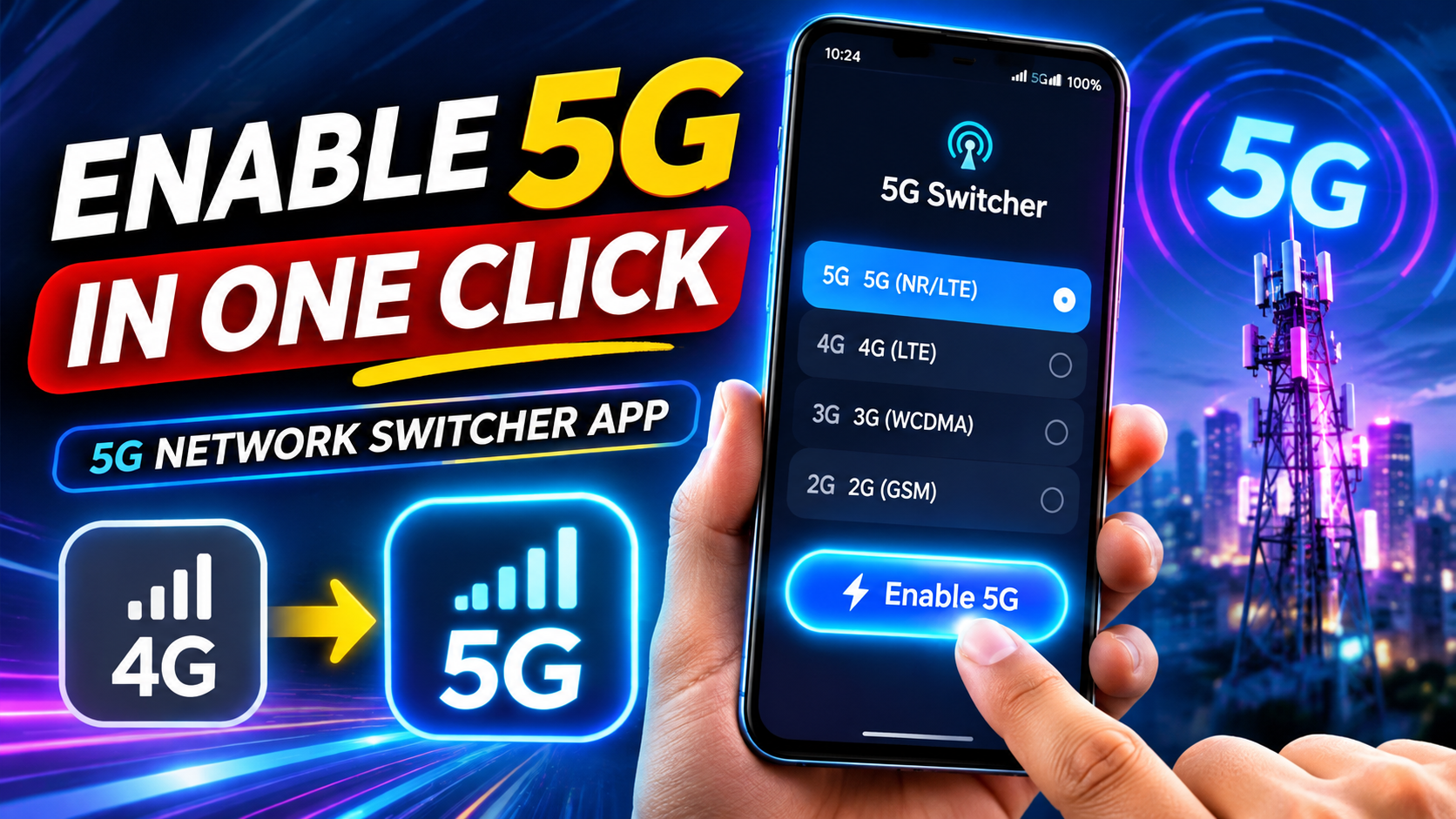
The good news is that there are Android applications that can help users access their mobile network settings quickly. Instead of navigating through several settings menus, users can open a network-switching application and access the available network modes, including 5G, 4G LTE and other supported options.
In this article, we will explain how to use a 5G Network Switcher app, how to enable 5G on Android smartphones, how to check 5G compatibility and what to do if your phone continues to display 4G.
Important: A network-switching app cannot create a 5G connection on a 4G-only smartphone. It only provides access to network settings that your device already supports.
What Is a One Click 5G Enable App?
A 5G Enable App or 5G Network Switcher is an Android application designed to provide quicker access to your smartphone’s preferred network settings.
Normally, users have to follow several steps:
- Open mobile Settings.
- Select SIM Cards or Mobile Network.
- Choose their active SIM card.
- Open Preferred Network Type.
- Select 5G/4G/3G/2G Auto, if available.
With a network-switching app, some of these steps can be simplified. Depending on your smartphone, the app may open the hidden or advanced network configuration screen directly.
For example, some apps provide options such as:
- 5G Network Mode
- 4G LTE Network Mode
- 3G Network Mode
- 2G Network Mode
- Automatic Network Selection
The available options depend on the smartphone manufacturer, Android version and mobile network operator.
Best 5G Network Switcher App for Android
One application you can explore is 5G Switcher.
App Name: 5G Switcher
Platform: Android
Developer: Nadia Dev
Main Purpose: Access and change supported mobile network modes.
The application listing describes features for switching between supported network modes, including 5G and 4G LTE. It also mentions that some smartphone models may not support all features.
Download 5G Switcher App
Official Google Play Store listing:
https://play.google.com/store/apps/details?id=net.switcher5g.force4gonly
Before installing, check the developer information, permissions, recent reviews and Data Safety section. App availability and compatibility may change.
Features of the 5G Switcher App
1. Quick Network Settings Access
The application is designed to make it easier to access your phone’s network configuration options.
2. 5G Network Mode
If your smartphone supports 5G and exposes the relevant network setting, you may be able to select a 5G-compatible network mode.
3. 4G LTE Network Mode
Users can also access 4G LTE network options where supported.
4. Multiple Network Modes
Depending on device compatibility, the application may display different network technologies.
5. Advanced Network Configuration
Some supported devices provide additional network configuration options through the application’s interface.
Remember that these features are not guaranteed to work on every Android smartphone.
How to Enable 5G Network Using an App
Follow these instructions to try accessing your smartphone’s 5G network settings.
Step 1: Download the 5G Switcher App
Open the Google Play Store on your Android smartphone.
Search for 5G Switcher or use the official app listing link provided above.
Check the application details before installing it.
Step 2: Open the Application
After installation, open the 5G Switcher application.
Depending on your phone model, the application may display network mode options or open an advanced mobile network settings screen.
Step 3: Select the Available 5G Network Option
If your smartphone supports 5G, look for an option such as:
- NR Only
- NR/LTE
- 5G/4G/3G/2G Auto
Select the appropriate option supported by your device and carrier.
For most users, an automatic 5G-compatible network mode is preferable to forcing 5G-only mode.
Step 4: Check Your Network Connection
After selecting the appropriate network mode, return to your home screen.
Check the network indicator near the signal bars.
If your operator provides 5G coverage and your device successfully connects, you may see the 5G symbol.
If the 5G symbol does not appear, check the compatibility and troubleshooting instructions below.
How to Enable 5G Without Using Any App
You do not necessarily need a third-party application to enable 5G.
Android smartphones generally provide the required network option in their built-in settings.
Follow these steps:
- Open Settings on your smartphone.
- Select Mobile Network or SIM Card Settings.
- Select your active mobile SIM.
- Tap Preferred Network Type.
- Select 5G/4G/3G/2G Auto or the equivalent option available on your phone.
- Restart your mobile data connection if necessary.
The exact menu names may differ between Samsung, Vivo, OPPO, Realme, Redmi, OnePlus and other Android brands.
How to Enable 5G on Different Mobile Brands
Samsung Smartphones
- Open Settings.
- Select Connections.
- Tap Mobile Networks.
- Select Network Mode.
- Choose an available 5G-compatible option.
Vivo Smartphones
- Open Settings.
- Select Mobile Network.
- Choose your SIM card.
- Open Network Mode.
- Select the available 5G option.
OPPO Smartphones
- Open Settings.
- Select Mobile Network.
- Choose your SIM card.
- Tap Preferred Network Type.
- Select 5G/4G/3G/2G Auto if available.
Realme Smartphones
- Open Settings.
- Select Mobile Network.
- Choose your active SIM.
- Open Preferred Network Type.
- Select the 5G-compatible option.
Redmi and Xiaomi Smartphones
- Open Settings.
- Select SIM Cards & Mobile Networks.
- Choose your active SIM.
- Tap Preferred Network Type.
- Select Prefer 5G or the equivalent available option.
These are general instructions. Your phone’s software version may use different menu names.
Requirements to Activate 5G on Your Smartphone
Before trying a 5G network-switching application, make sure your device meets the following requirements.
1. 5G-Compatible Smartphone
Your smartphone must contain a 5G-compatible modem and support the required network bands.
2. Active SIM Connection
You need an active mobile connection from a network operator that provides 5G services. In many cases, existing 4G SIM cards can also be used for 5G.
3. 5G Network Coverage
Your current location must have 5G coverage from your mobile operator.
4. Supported Mobile Recharge Plan
Check your operator’s current recharge plan and 5G eligibility conditions.
5. Updated Smartphone Software
Install the latest available software update from your smartphone manufacturer. Updates can include network compatibility improvements.
How to Activate Jio 5G on Android
Jio users can follow these steps:
- Open Settings.
- Select SIM Cards & Mobile Networks.
- Choose your Jio SIM.
- Select Preferred Network Type.
- Choose the available 5G-compatible network mode.
- Make sure mobile data is enabled.
Jio also recommends keeping the smartphone software updated and selecting 5G as the preferred network.
Check the official Jio 5G information and eligibility conditions here:
https://www.jio.com/help/faq/mobile/jio-true-5g/
How to Activate Airtel 5G on Android
Airtel users can follow these steps:
- Open your smartphone’s Settings.
- Select Mobile Network or Connections.
- Choose your Airtel SIM.
- Open Preferred Network Type.
- Select the available 5G-compatible option.
- Enable mobile data.
Airtel states that existing Airtel 4G SIM cards can work with its 5G service on compatible smartphones.
Official Airtel 5G information:
https://www.airtel.in/5g-network/
Why Is My Phone Still Showing 4G Instead of 5G?
Even after selecting 5G in your settings, your smartphone may continue displaying 4G. This can happen for several reasons.
1. Your Area Does Not Have 5G Coverage
5G connectivity is available only in locations where your operator has deployed its 5G network.
2. Your Smartphone Does Not Support 5G
A network-switching application cannot upgrade a 4G-only smartphone into a 5G smartphone.
3. Incorrect Network Mode
Check whether your preferred network setting is configured correctly.
4. Outdated Software
Check for available Android and manufacturer software updates.
5. Recharge Plan Eligibility
Some operators apply specific plan requirements for accessing 5G services. Check your current plan.
6. Weak 5G Signal
Indoor locations, buildings and other environmental conditions can affect network availability and signal strength.
Can a 4G Mobile Be Converted into a 5G Mobile Using an App?
No. This is one of the most important things users should understand.
A 5G connection requires compatible hardware, including a 5G modem and supported radio-frequency bands.
An application cannot add 5G hardware to your smartphone.
For example:
- A 4G-only smartphone cannot receive a genuine 5G signal through an app.
- A 5G smartphone may be able to connect to 5G after enabling the correct network mode.
- A network-switching application cannot guarantee faster internet speeds.
- 5G connectivity still depends on network coverage and operator eligibility.
Therefore, avoid applications that promise to convert any 4G phone into a 5G phone.
Is It Safe to Use 5G Network Switcher Apps?
Before installing any third-party network application, consider the following safety precautions:
- Download applications only from trusted sources.
- Check the developer’s name and application reviews.
- Read the permissions requested by the application.
- Avoid apps that request unnecessary access to contacts, messages or personal files.
- Do not install unknown APK files from untrusted websites.
- Avoid changing advanced network settings unless you understand their purpose.
Some network settings may behave differently across smartphone models. If your mobile network stops working after changing a setting, return to the original automatic network mode.
Frequently Asked Questions (FAQs)
1. Can I enable 5G with one click?
Some applications can provide quick access to your phone’s network settings. However, actual 5G connectivity requires a compatible smartphone, eligible mobile connection and 5G coverage.
2. Which is the best app to switch from 4G to 5G?
You can explore the 5G Switcher application available on Google Play. Its features depend on your smartphone model and Android version.
3. Can I activate 5G on a 4G mobile?
No. A 4G-only smartphone does not have the hardware required to connect to a 5G network.
4. Do I need a new SIM card for 5G?
Not necessarily. Jio and Airtel provide 5G services using compatible existing SIM cards, subject to their service requirements.
5. Why is 5G not showing after changing network settings?
Possible reasons include lack of coverage, incompatible hardware, outdated software, plan restrictions or network configuration problems.
6. Does a 5G Switcher app increase internet speed?
No. The application does not independently increase your internet speed. Actual speed depends on the network, signal strength, device and operator.
7. Can I use the app on Samsung, Vivo, OPPO and Realme phones?
You can try it, but compatibility is not guaranteed. Some smartphone manufacturers restrict access to advanced network settings.
Conclusion
A 5G Network Switcher application can make it easier to access supported mobile network settings without navigating through multiple menus. If you own a compatible 5G smartphone, you can use the application or your phone’s built-in settings to select the appropriate 5G network mode.
However, remember that no application can convert a 4G-only phone into a real 5G device.
For the best experience, use a compatible smartphone, an eligible mobile plan and a network operator that provides 5G coverage in your area.
Try the 5G Switcher app using the official Google Play Store link above and check whether your smartphone supports the available network options.